
Visualizing Background Events
With each type of background event, there are different ways that charters can approach them and different rules to using them. Understanding each type of background event can help you use them more effectively.
Each background uses two collections of background events: a global set found across all backgrounds and a background exclusive-set.
Background Alphas
Section titled “Background Alphas”In EX-XDRiVER, background alphas refer to values that control the opacity of sources of glow in the background. In BackgroundTunnel, background events can control the opacity of the left and right chevron paths. In BackgroundCity, background events can control the opacity of glow from the buildings, the floor, and the spotlights.
Background alpha values all default to 1 at the start of a chart, and supported values range from 0 to 1. When an alpha value decreases, the glow emitted from affected objects become weaker, with some objects becoming transparent. When an alpha value increases, the glow emitted from affected objects become stronger, with some objects becoming more opaque.
-- Events for any backgroundxdrv.RunEvent("SetPathAlpha","beat",4,0.5)xdrv.RunEvent("EasePathAlpha","beat",8,0.9,4)For each component that charters can change the alpha of, they have control of three values: a generic shared alpha value which affects both sides, a left alpha value, and a right alpha value. To determine the opacity of the left and right glow sources, the game multiplies the left / right side alpha value with the shared alpha value. Here are some examples of alpha value products on BackgroundTunnel.
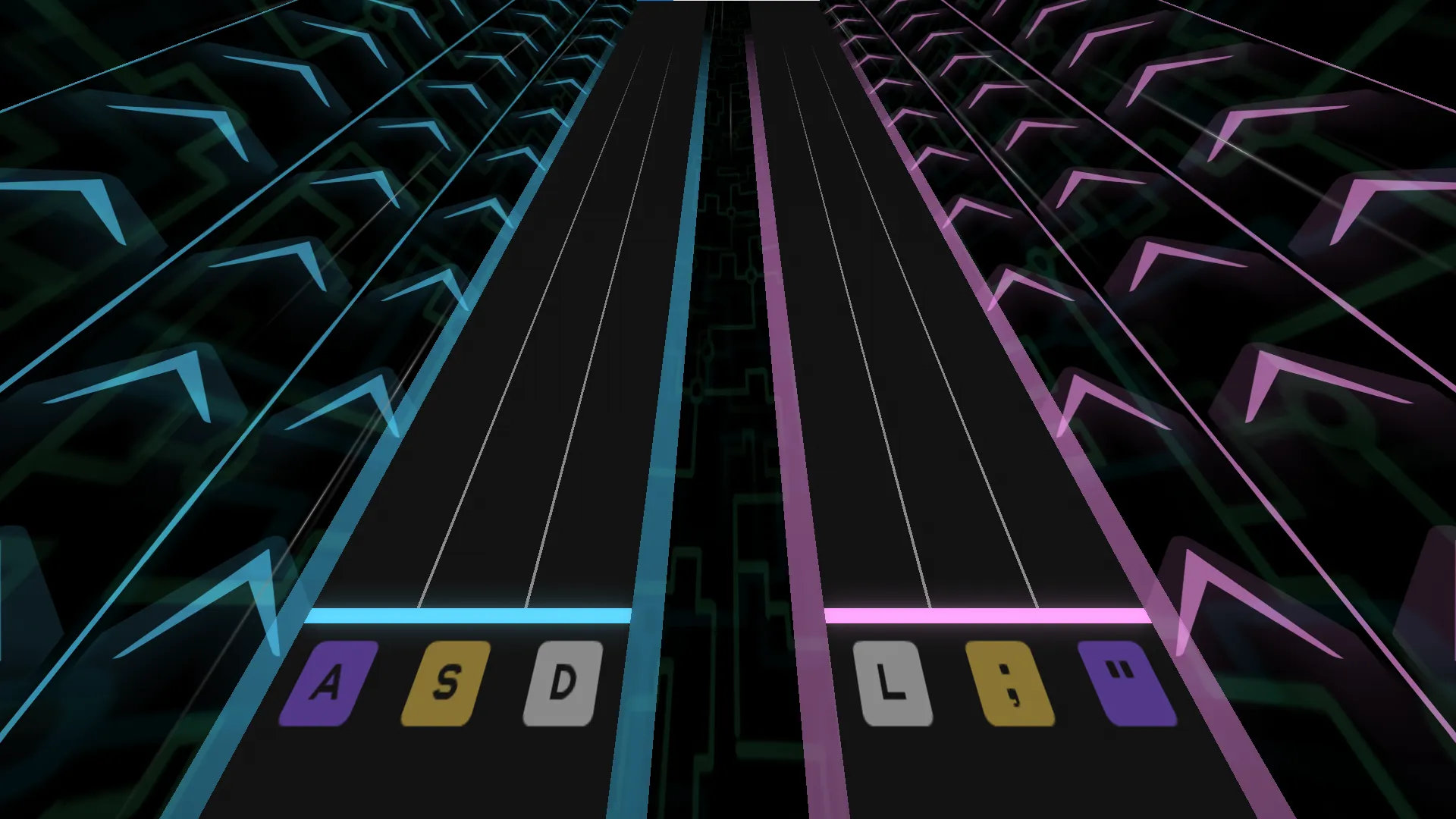
PathAlpha = 0.5
LeftPathAlpha = 1
RightPathAlpha = 1
Resulting Left Alpha: 0.5 * 1 = 0.5
Resulting Right Alpha: 0.5 * 1 = 0.5
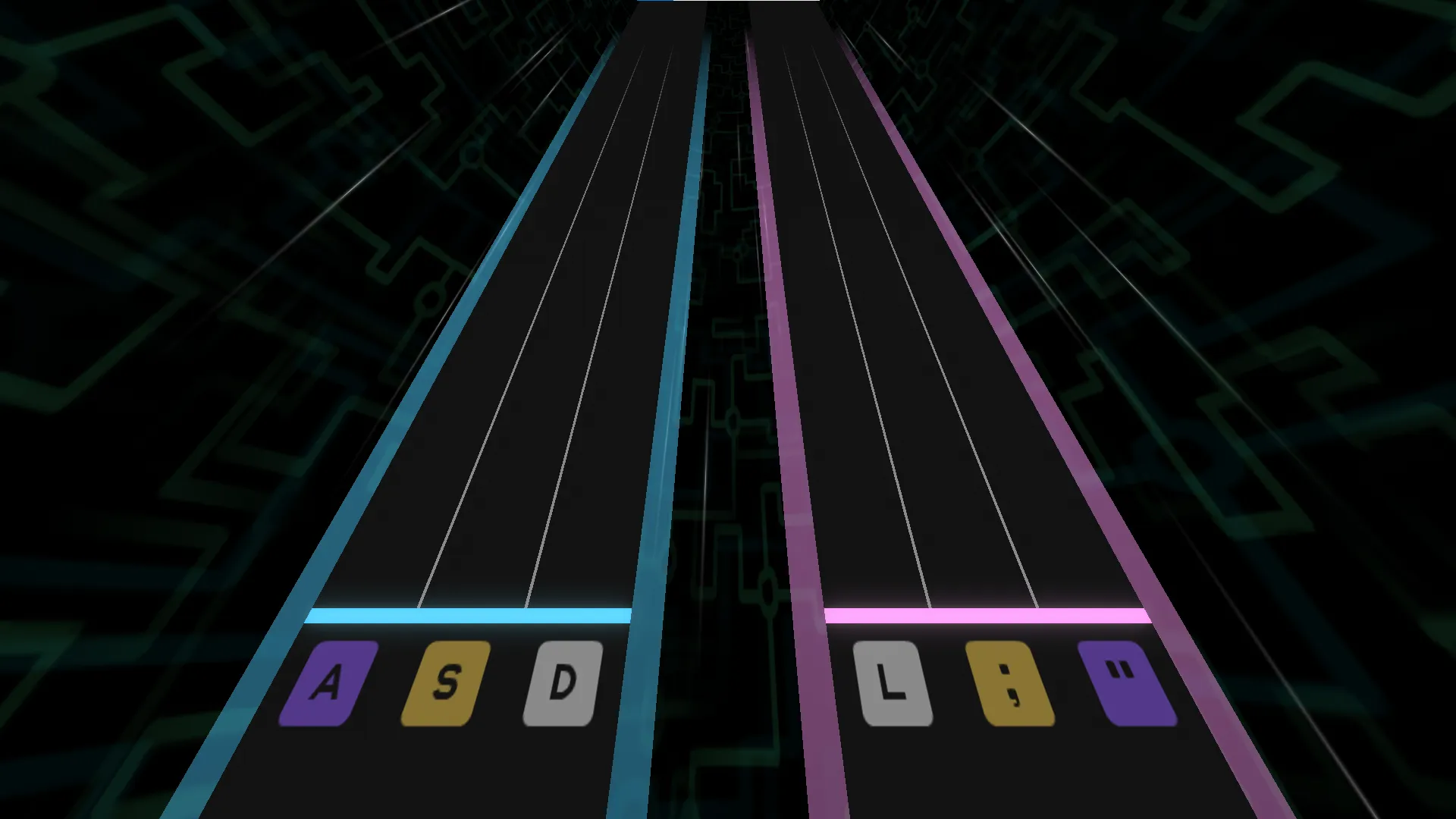
PathAlpha = 0
LeftPathAlpha = 1
RightPathAlpha = 0.5
Resulting Left Alpha: 0 * 1 = 0
Resulting Right Alpha: 0 * 0.5 = 0
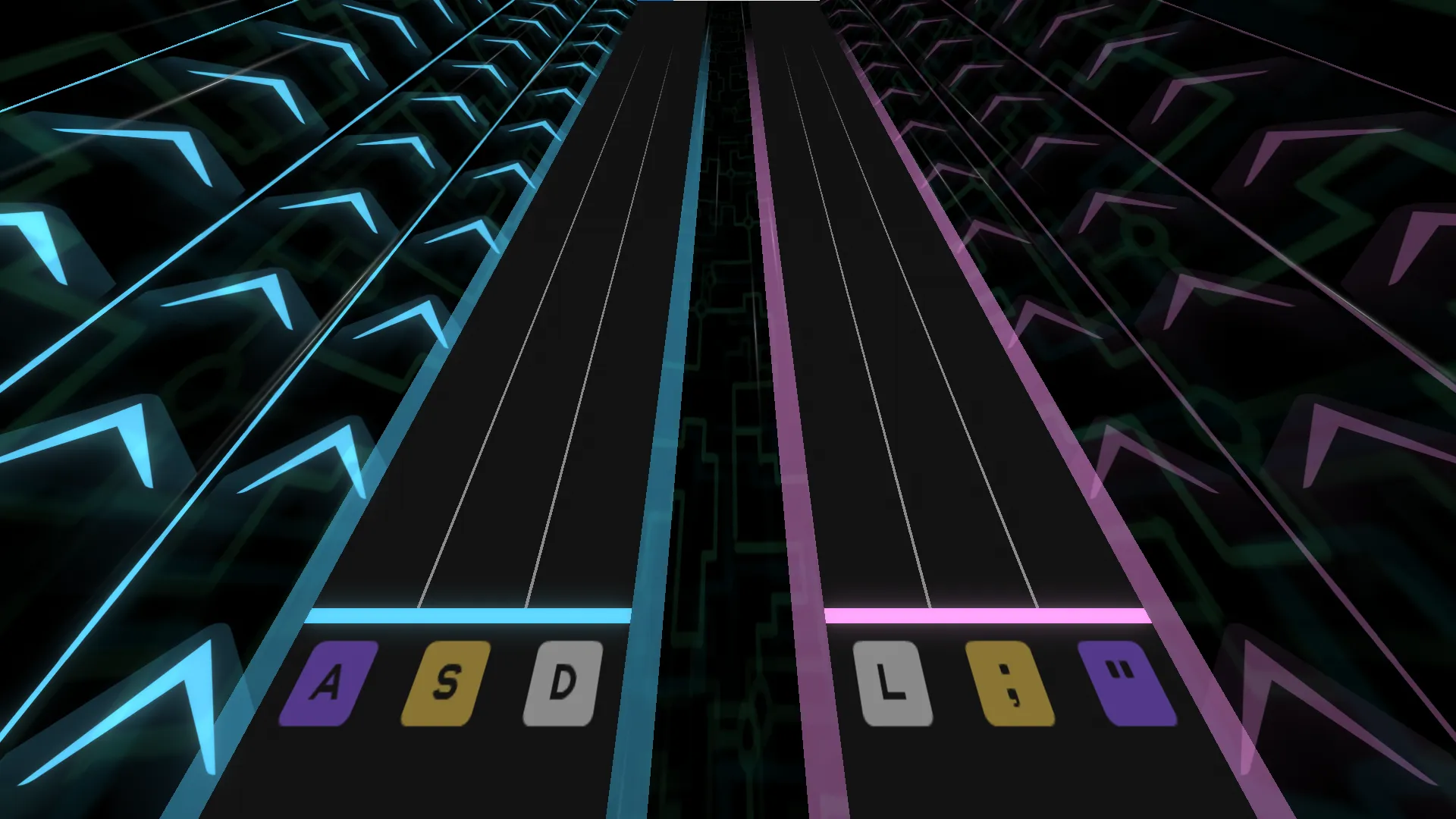
PathAlpha = 1
LeftPathAlpha = 0.75
RightPathAlpha = 0.25
Resulting Left Alpha: 1 * 0.75 = 0.75
Resulting Right Alpha: 1 * 0.25 = 0.25
This is very similar to how alphas across objects are controlled. Typically, each background has at least one alpha value that controls the glow of all objects on screen. Then, if the background has smaller objects that can be individually controlled, these objects have unique, controllable alpha values as well. These individual alpha values are still multiplied by the collective alpha. In BackgroundDesert, for instance, the player can control the alpha of the pyramids’ glow using StructureAlpha, the torches’ flames using TorchAlpha, or both using DesertAlpha.
Fade-ins & Fadeouts
Section titled “Fade-ins & Fadeouts”Fading alpha values in and out is a very common and simple technique that can be applied to easily represent the intensity of a song. Typically, louder or busier sections can be represented with higher alpha values, while quieter sections can be represented with lower alpha values. Fading an alpha value in or out over a longer period of time can represent risers/falls/sweeps.
Pulses
Section titled “Pulses”Pulses are a very common usage of alpha values that can be found across many charts. A pulse refers to a sequence of background events which quickly bring an alpha to an emphasized value and then slowly return the alpha to some value of rest. In turn, pulses are composed of three sequential segments: an in duration, hold duration, and out duration.
| Duration | Behavior |
|---|---|
| In | Over this duration, the alpha eases from an initial value to a peak value. Can be 0 (instant). |
| Hold | Over this duration, the alpha holds the peak value. Can be 0 (no hold). |
| Out | Over this duration, the alpha eases from the peak value back to the initial value. |
In other words, to create a pulse effect, simply bring an alpha value up, hold it for any amount of time, and then fade the value back.
Pulses are great for emphasizing nearly anything with impact, whether that be loud synths, kicks, snares, crashes, or even notes like gears. When using pulses, make sure that the change in alpha is enough to be visible to the player. Also make sure that your pulse does not (unintentionally) interfere with bloom in the scene.
Since pulses follow a general structure, the best way to do them is with a helper function. An example of such a function can be found in Helper Function Heap.
UI Alphas
Section titled “UI Alphas”Very similar to background alphas, UI alphas refer to values that control the opacity of game UI. UI alphas are typically leveraged by charters to create moments of emphasis, reveal a song’s name mid-chart, or lessen how much the UI obstructs gameplay.
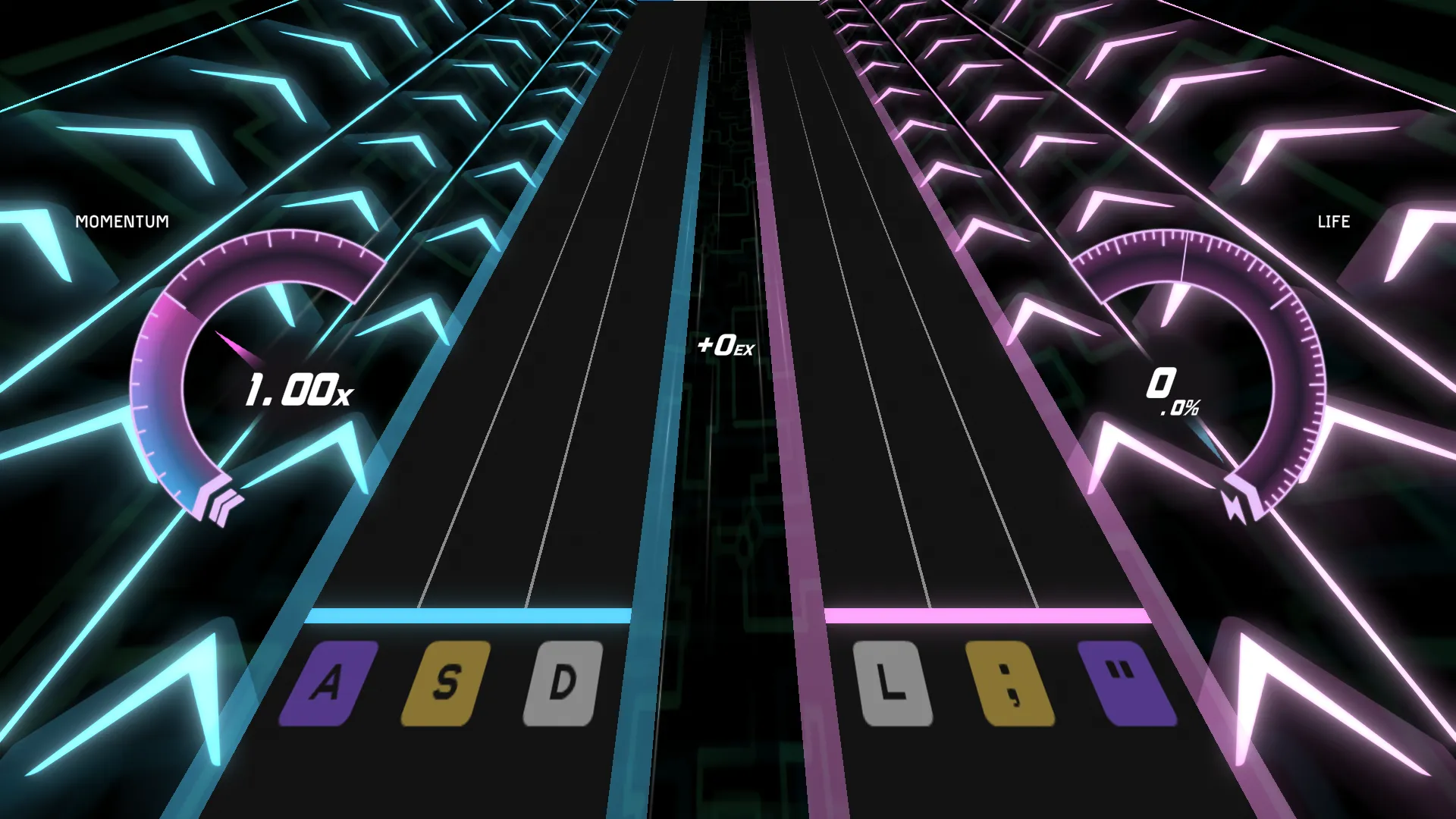
UI alpha values default to 1, and supported values range from 0 to 1, with 1 being fully visible and 0 being invisible.
-- Hype song revealxdrv.RunEvent("SetUIAlphaCurrentSongGroup","beat",-12,0)xdrv.RunEvent("SetUIAlphaRadialGaugesGroup","beat",-12,0)xdrv.RunEvent("SetUIAlphaProgressBar","beat",-12,0)
-- Note that setting and easing of all UI alphas-- are controlled with just "Set" functionxdrv.RunEvent("SetUIAlphaCurrentSongGroup","beat",4,0,4)xdrv.RunEvent("SetUIAlphaRadialGaugesGroup","beat",4,0,4)xdrv.RunEvent("SetUIAlphaProgressBar","beat",4,0,4)
Also similar to background alphas, most alphas are grouped into collections, where the opacity of individual UI elements are determined by multiplying together all alpha values that control it. All UI are affected by the UIAlpha value. Then, each UI component is controlled by one of three groups: CurrentSongGroup, PlayerResponseGroup, or RadialGaugesGroup. Lastly, each UI element has an individual alpha value.
Bloom is another value that can be changed on all backgrounds, and its implementation across backgrounds is wholly consistent. Bloom is a post-processing effect which causes bright areas on the screen to appear brighter and more white.
BloomIntensity and BloomDiffusion both default to values of 1 at the start of a chart. When these values are increased, the effect of bloom on screen becomes more noticeable, and when decreased, the effect of bloom becomes less so. Generally, these values should be adjusted together as to produce a visually consistent effect.
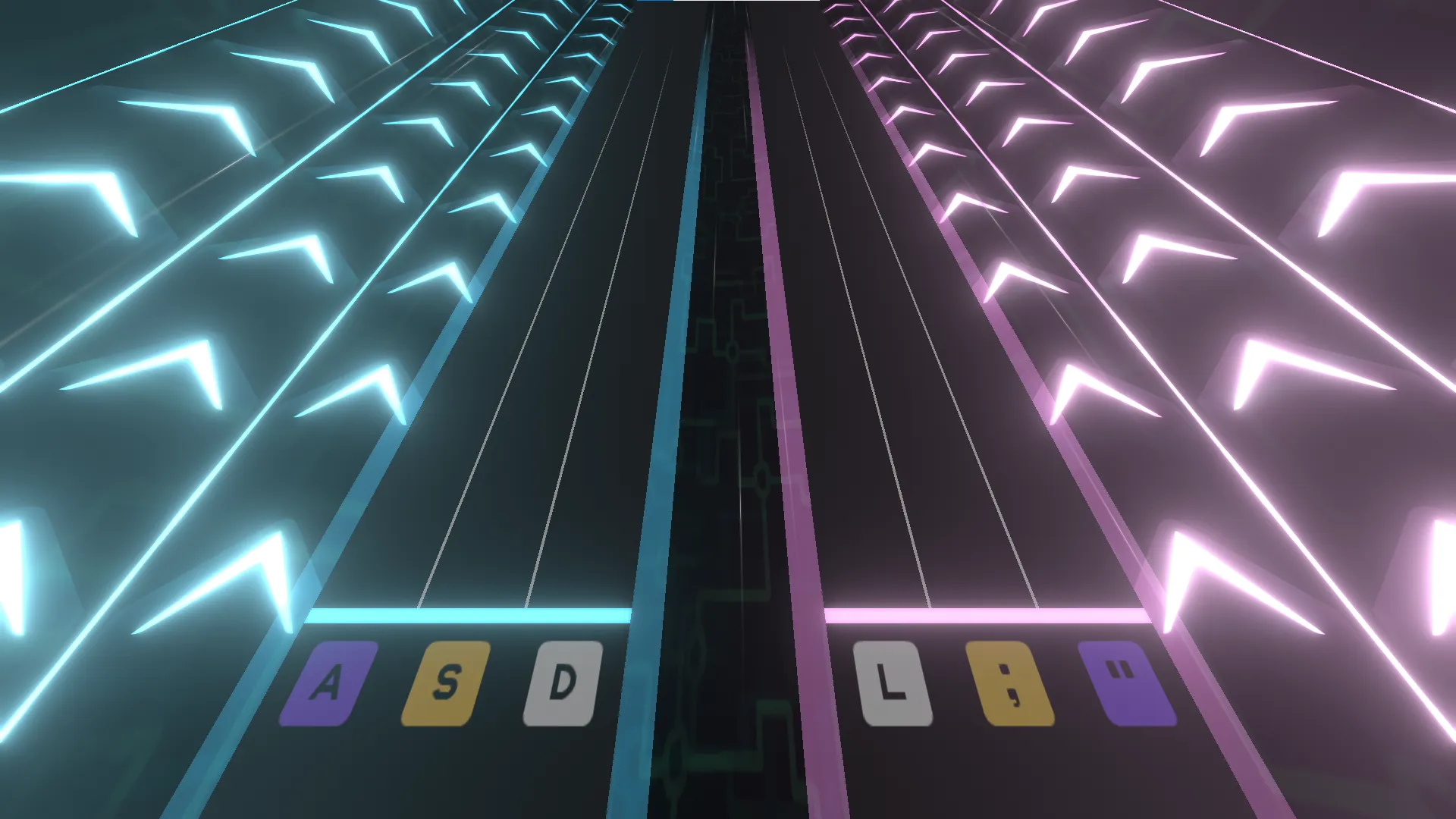
xdrv.RunEvent("EaseBloomIntensity","beat",4,1.75,4)xdrv.RunEvent("EaseBloomDiffusion","beat",4,1.75,4)As with background alphas, bloom can be faded in and out or pulsed depending on the charter’s needs. Charters should be careful, however, as the effect of bloom increases based on the value of background alphas in the scene. Higher background alphas result in stronger glow, which is amplified more by bloom. Charters should ensure that bloom does not become a visual nuisance when it is used. Generally, 1.5 is a good emphasis value for bloom; anything above that is extreme.
BloomBeat
Section titled “BloomBeat”BloomBeat is a special variety of bloom that can be used across all backgrounds. In short, when EnableBloomBeat is called at a certain beat, a bloom multiplier peaks up and then goes back down for that beat and each beat after. This effect continues until DisableBloomBeat is called.
xdrv.RunEvent("EnableBloomBeat","beat",12)xdrv.RunEvent("DisableBloomBeat","beat",16)BloomBeat is a really easy way to represent four-on-the-floor kicks or other per-beat impacts. For not-on-beat rhythms or musical sections that are very busy, BloomBeat can still be very fitting. Bear in mind that BloomBeat layers on top of your bloom intensity and diffusion values.
Colorable Components
Section titled “Colorable Components”For backgrounds like BackgroundRush, the colors of components in the background can be adjusted to fit a variety of color schemes. Unlike alpha and bloom values, which use number values, colorable components can accept a color value, written in hex notation.
-- Events for BackgroundRushxdrv.RunEvent("SetChevronColor","beat",-12,"#df3a40")xdrv.RunEvent("SetBackgroundColor","beat",-12,"#203177")xdrv.RunEvent("SetGridColor","beat",-12,"#f8e9e2")Background Actions
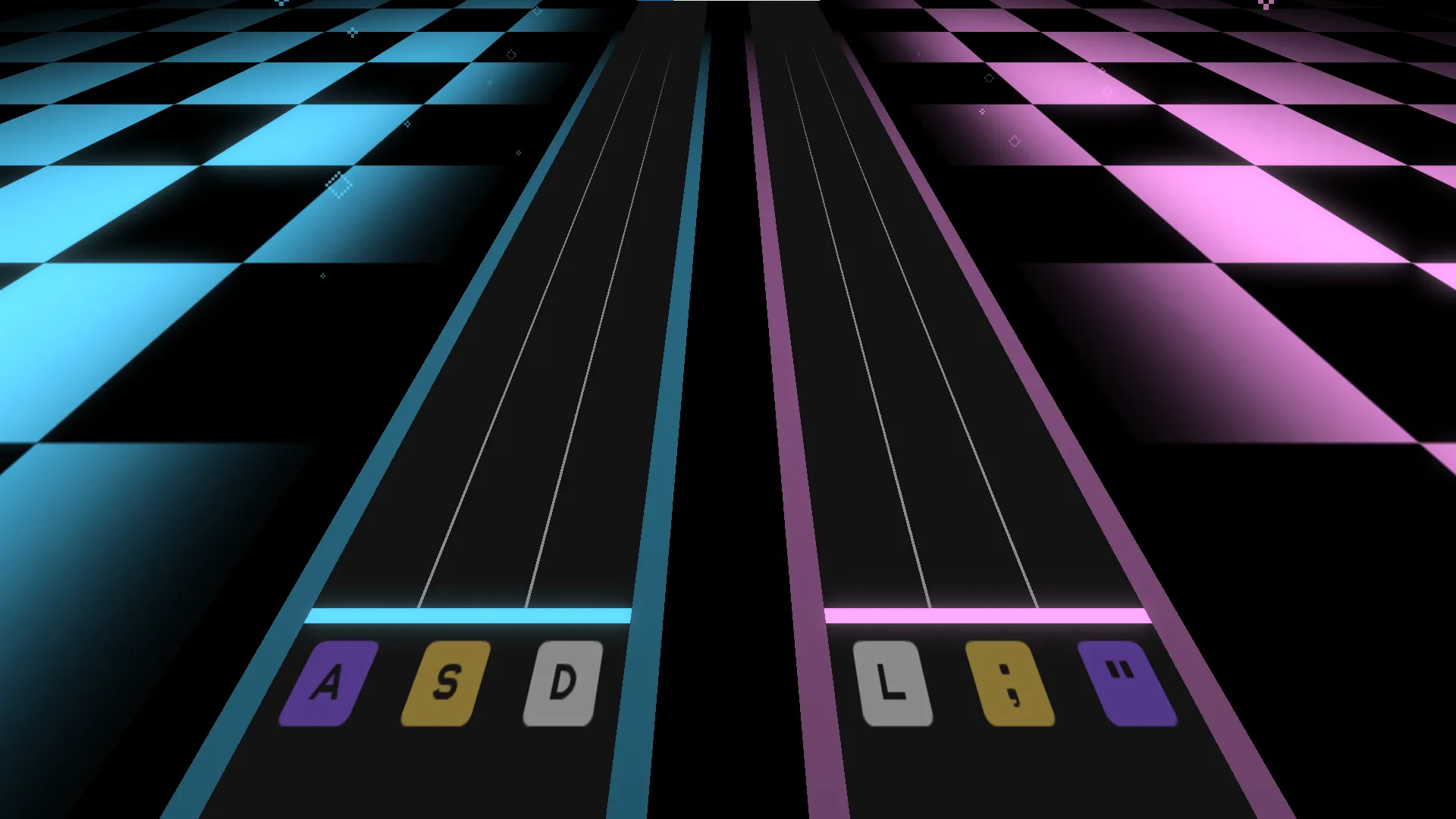
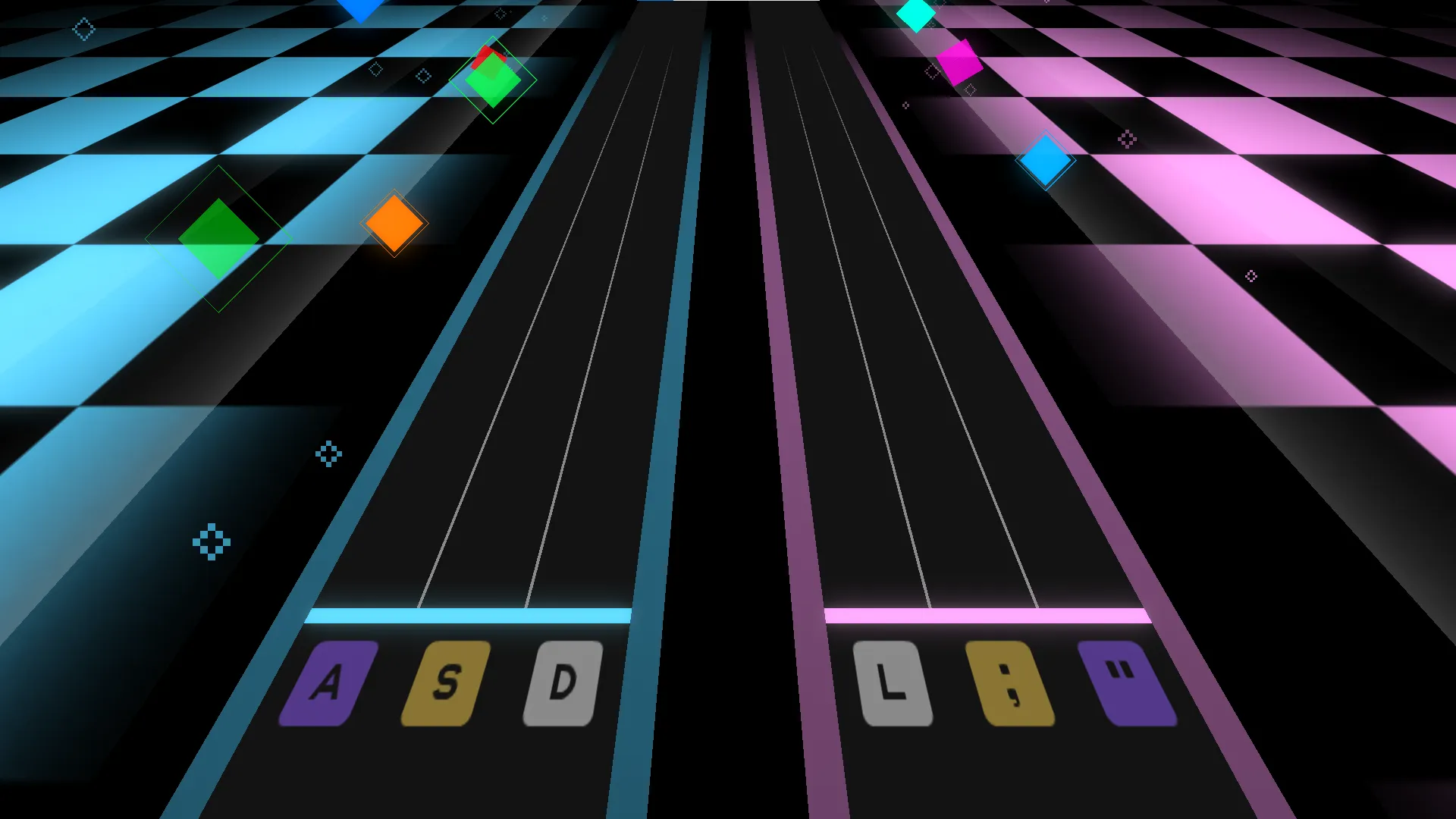
Section titled “Background Actions”For backgrounds like BackgroundVivid, BackgroundDesert, and BackgroundRush, particular events can be invoked that cause special visual effects to fire off. These events all look different, so knowing how to optimally use each is a matter of experimenting with them and learning what works. Some of these events may even result in lingering changes to the background, making for environmental variety and sectioning of your chart. Additionally, some of these events work with just the minimum parameters, while other events require a few more values.
 |  |
|---|---|
| Without Events | With Events |
-- Events for BackgroundVividxdrv.RunEvent("RunLeftPulse","beat",4)xdrv.RunEvent("RunRightPulse","beat",6)xdrv.RunEvent("RunSpawnColorSquares","beat",8)
-- Events for BackgroundDesertxdrv.RunEvent("EnableTorches","beat",4,4)xdrv.Runevent("DisableTorches","beat",20,4)
-- Events for BackgroundRushxdrv.RunEvent("ShowCharacters","beat",12)xdrv.RunEvent("FlipCharacters","beat",16)xdrv.RunEvent("HideCharacters","beat",20)You might have a basic understanding of how you can use background events in your charts. From here, you might want to look at some base-game charts to see how they approach background events. Otherwise, the best way to get a handle on what background effects you should use per section is to start messing around with them. As you add background events to your charts, remember that, when joined with patterns and mods, simpler background events can sometimes be more impactful.